All stories · Article
ChatGPT Business Hub: What Shopify sellers can claim, manage and activate
OpenAI is giving businesses a more direct way to manage how they appear and interact with customers on ChatGPT. Launched in beta on November 10, 2026, Businesses in ChatGPT introduces three capabilities: business profiles, aggregated engagement insights and Business Agents.
Share: WhatsApp · Telegram · X · Facebook · LinkedIn · Email

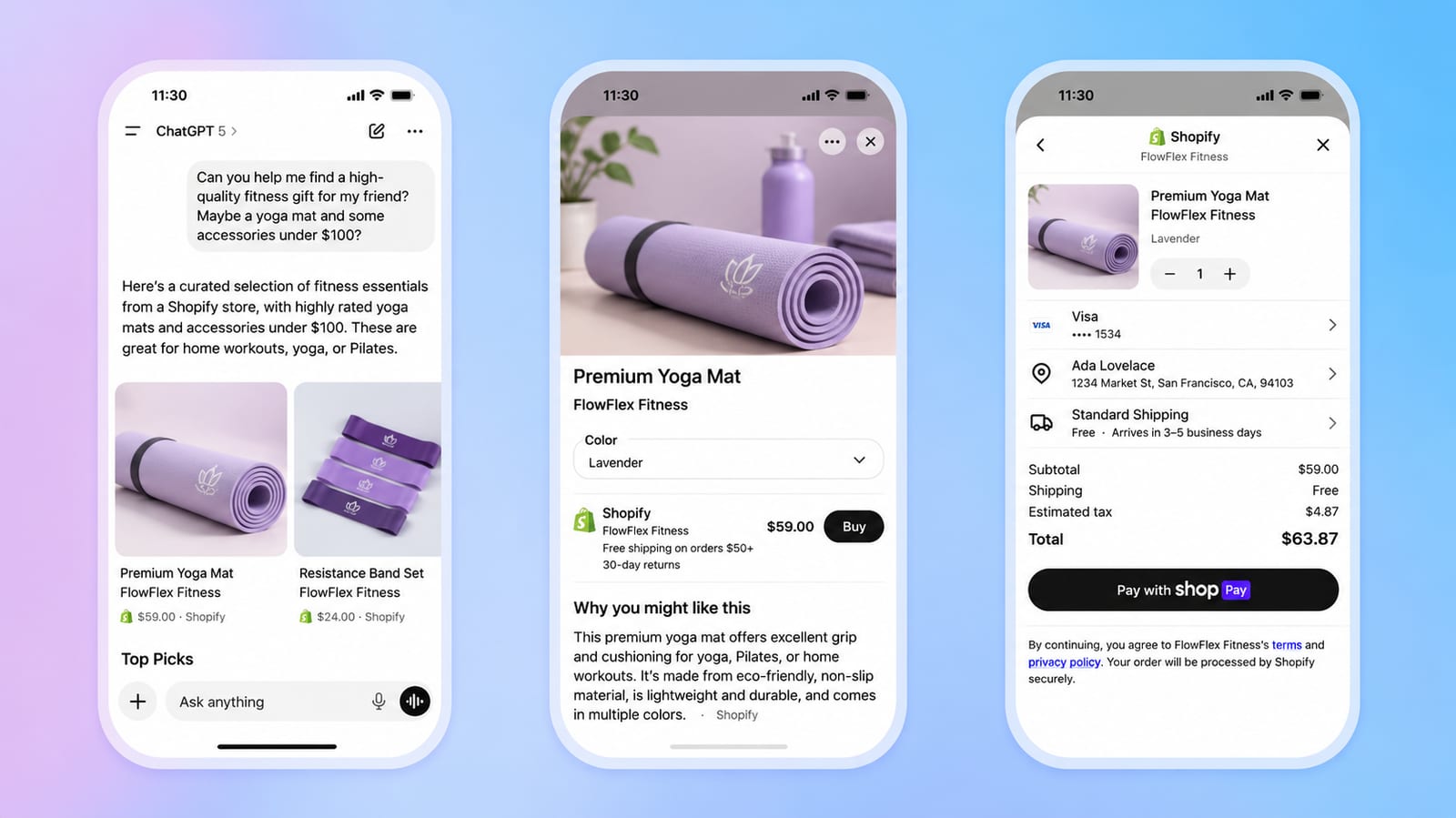
For Shopify sellers, the important distinction is that these features serve different purposes.
- Shopify Catalog helps make eligible products discoverable.
- Business Hub lets merchants manage their business presence.
- Business Agents add a conversational layer for customer interaction.
Claiming a profile does not guarantee better placement in ChatGPT or more sales. It gives businesses a way to keep their information accurate and, if eligible, build a direct interaction with potential customers.
What Shopify sellers can do
Claim and manage a business profile
Businesses can claim an existing profile or create one where the option is available. After verification, merchants can update their website, business description, product or service category, logo, delivery policy, return policy and other details.
A blue verification badge appears after the required Persona identity check is approved.
Track how customers discover the business
Business Hub provides aggregated insights, including:
- Mentions: How often ChatGPT references the business.
- Website clicks: Visits referred from ChatGPT.
- Discovery topics: Common themes in ChatGPT responses that mention or link to the business.
These insights do not reveal individual prompts or private customer conversations. Blank metrics do not necessarily mean zero activity; reporting thresholds, processing delays or unavailable data may be the reason.
Launch a Business Agent
Eligible businesses can build a branded agent that answers customer questions, compares products and explains business policies using information supplied by the merchant.
The agent does not complete purchases. Customers are directed to the merchant's online store to check out.
Official overview: OpenAI - Introducing Businesses in ChatGPT.
First, check your Shopify setup
Product discovery and business-profile management are separate processes.
To check product eligibility, open Shopify Admin → Sales channels → Agentic → ChatGPT. Shopify Catalog makes eligible products discoverable through ChatGPT. Merchants can review catalog eligibility and product data mapping in the Agentic section.
Shopify's requirements include:
- Selling to customers in the United States. The store itself can be based outside the US.
- Having products eligible for Shopify Catalog.
- Agreeing to Shopify's Agentic Storefronts Supplemental Terms.
- Completing the Terms of Service, Privacy Policy, and Return and Refund Policy under Settings → Policies.
- Including relevant legal disclosures within the first 6,000 characters of product descriptions.
Customers still complete purchases through the merchant's Shopify checkout, displayed in ChatGPT's in-app browser or a new browser tab. Existing payment methods and checkout customizations remain in place.
Important: Eligible products are already shared through Shopify Catalog. Merchants do not need to install the ChatGPT Business app or create a separate product feed just to become discoverable.
Read Shopify's full requirements: Selling on ChatGPT.
How to claim your business profile
There are two routes: connect through Shopify or claim directly in Business Hub.
Option 1: Use the ChatGPT app in Shopify
- Go to Shopify Admin → Sales channels → Agentic.
- Under Channels, select ChatGPT.
- Click Install app → Install.
- Open Shopify Admin → Apps → ChatGPT and select Get started.
- Sign in to the ChatGPT account that will manage the business, then click Continue.
- Claim the matching business profile. If none appears, follow the prompts to create one if available. If another account has claimed it, use Dispute business.
- Select Manage business, then continue to Verify with Persona.
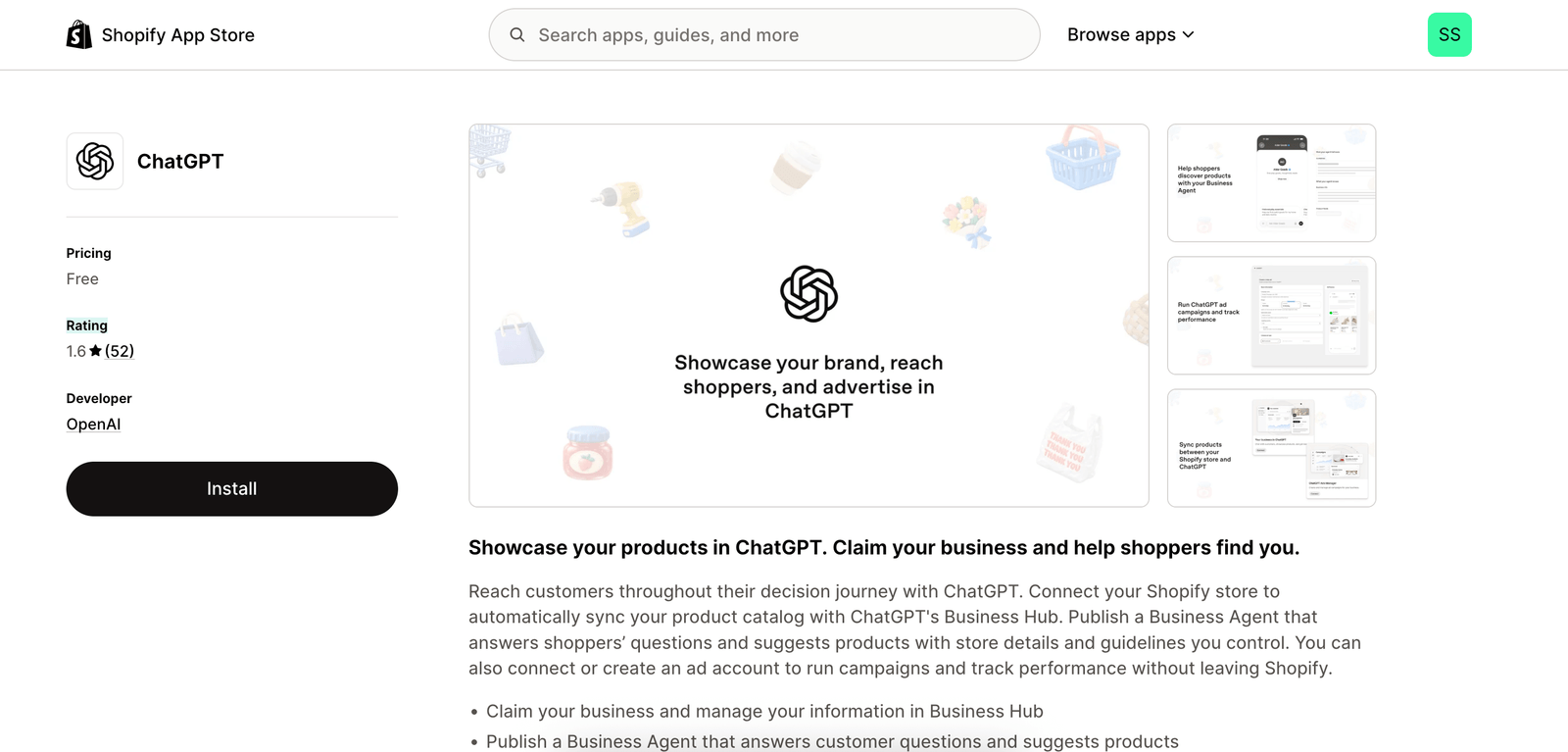
Install ChatGPT from the Shopify App Store.
Option 2: Claim directly through Business Hub
Open ChatGPT Business Hub, search for the business and select the matching profile. Choose an available verification method, which may include a business phone number, business email, website domain or Shopify store.
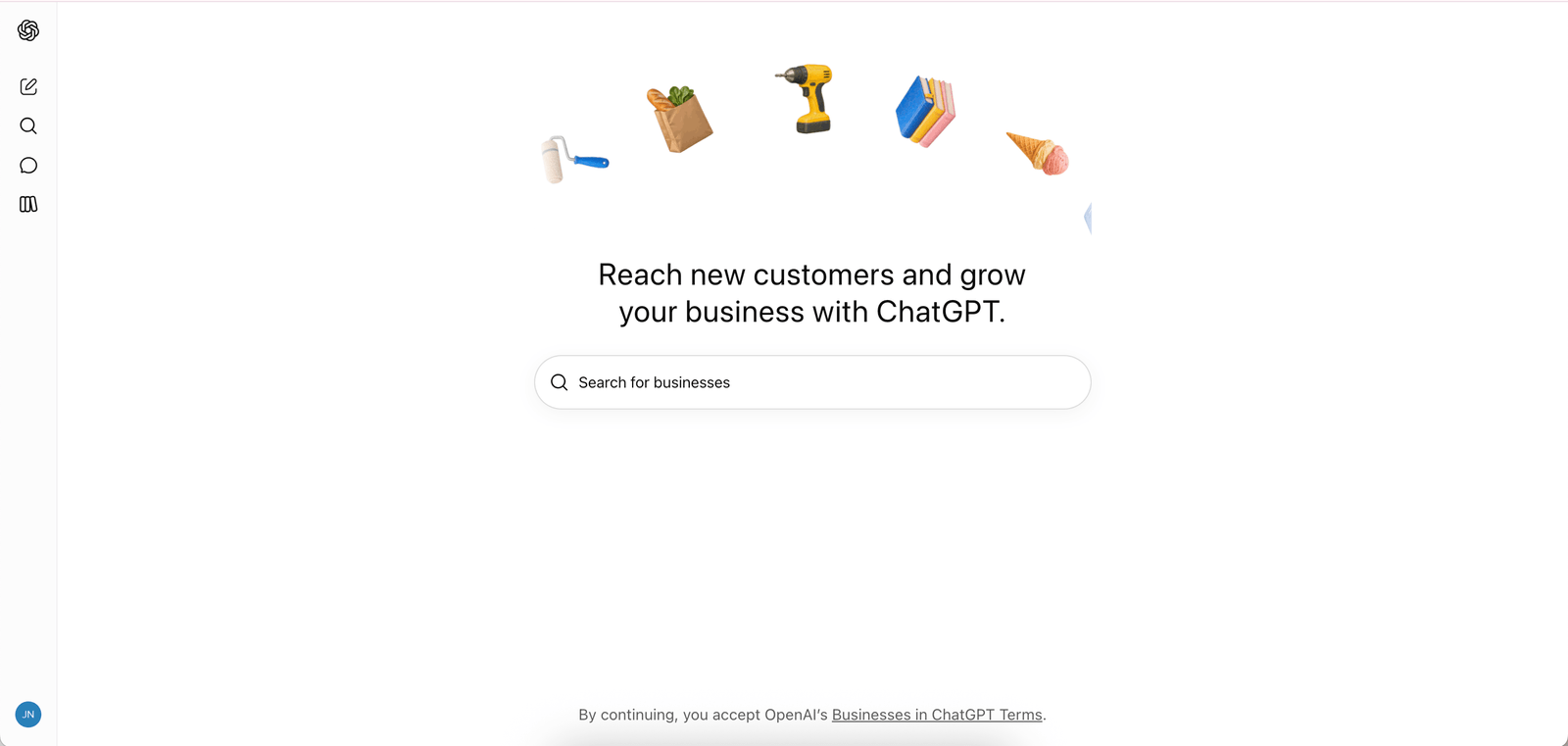
OpenAI reviews the claim and sends its decision or a request for more information by email.
The Shopify app is optional. Using it provides a verification route through the Shopify store; merchants can also claim directly through Business Hub.
Persona verification: prepare before you submit
Claim approval and Persona identity verification are separate steps. Merchants must complete Persona verification before they can publish profile changes, view insights, connect a product feed or create an eligible Business Agent.
Depending on the case, prepare:
- A government-issued identity document.
- Business registration information.
- Evidence that you own or are authorized to represent the business.
Check that the legal business name, address and registration or tax details match official records.
Early app reviews point to a potential setup problem
As of November 12, 2026, the ChatGPT app on Shopify App Store showed a 1.6/5 rating from 52 reviews, with 42 one-star ratings.
Recent reviewers reported that the app automatically populated the legal business name using the Shopify store name, with no clear way to edit it before Persona verification. Others described failed checks with little explanation.
These are merchant-reported issues, not evidence that every store will encounter the same problem. The app also predates Business Hub and was previously used for ChatGPT Ads, so its overall rating should not be interpreted as a rating of the new Business Hub workflow alone.
If verification fails, follow the instructions in OpenAI's email. If Try again is available, submit corrected information and ensure the business name, address and registration or tax details match official records. If you cannot retry, contact OpenAI Support, including the failed step, error message and a screenshot with sensitive information removed.
What to update after verification
Once the claim and Persona verification are approved, open Business Hub → Business → select your profile.
Review these fields:
| Field | What to check |
|---|---|
| Website | The main domain customers should visit |
| Business description | What you sell, who you serve and what distinguishes your offer |
| Product or service category | The category that accurately reflects your business |
| Logo and cover image | Consistent brand assets |
| Delivery policy | Accurate shipping information |
| Return policy | Conditions that match your Shopify storefront |
OpenAI reviews and publishes profile changes. Updates may take time to appear in ChatGPT, which may also use other sources when answering questions about a business.
Insights, product feeds and Business Agents
Insights: Open the verified business profile and select Insights. The dashboard shows aggregated activity over the previous 28 days, including mentions, website clicks and discovery topics. It does not expose individual customer prompts or conversations.
Product feeds: Shopify merchants using Shopify Catalog generally do not need a separate feed for eligible products. A separate feed may be useful for additional product data or another catalog source. Connecting a feed does not guarantee product recommendations.
Business Agents: Eligible US-based ecommerce and online service businesses can open their profile in the Business tab and create or review a draft agent. Check its product information and policies, write clear response instructions, and test it with realistic customer questions - for example, whether a discounted item can be returned. Correct inaccurate answers before selecting Publish. Only published agents are available to customers.
Business Agents have separate eligibility requirements based on location, business type and industry. A business may be able to claim a profile and view insights without qualifying for an agent.
See OpenAI's Business Hub setup guide for the full process.
What sellers should do now
The practical order is straightforward:
- Check product eligibility: Confirm Shopify Catalog is sharing the right products.
- Prepare business information: Make sure legal details are consistent with official records.
- Claim and verify: Use Shopify or Business Hub, then complete Persona verification.
- Update the profile: Review the information customers may rely on.
- Test an agent if eligible: Treat it as an additional customer-service and product-discovery tool, not a requirement for appearing in ChatGPT.
Business Hub gives merchants more control over the information they provide to ChatGPT. It does not give them control over ChatGPT's independent recommendations - and it does not guarantee visibility or sales.
Ask AI next
- How do I correct the legal business name the ChatGPT Shopify app auto-fills before Persona verification?
- What should a ChatGPT Business Agent's instructions say so it answers return and shipping questions correctly?
- How do ChatGPT Business Hub website clicks compare with ChatGPT referral sessions in Shopify Analytics?
- What sources besides a claimed business profile does ChatGPT use when it answers questions about a store?
- Which countries, business types or industries can use ChatGPT Business Agents during the beta?